


Lift: AI Photo Editor
4.2152.00 Reviews
App Specs
- Version
- 2.15.0.b5
- Updated On
- License
- Free
- Downloads
- 1,000,000+
- Developer
- Lift App
- Categories
- Photography
- Platform
- Android
Screenshots
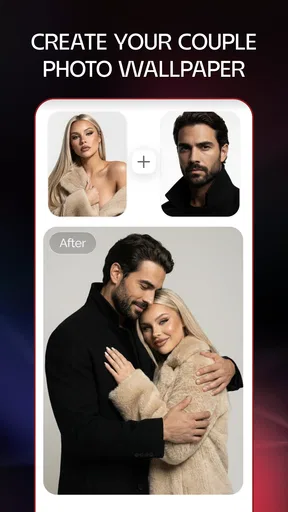

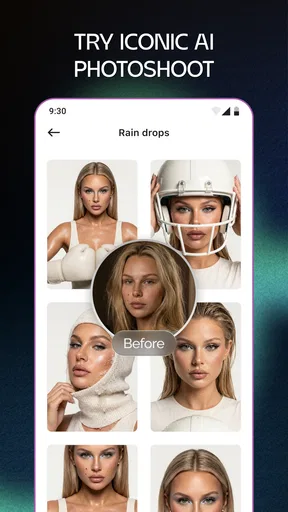
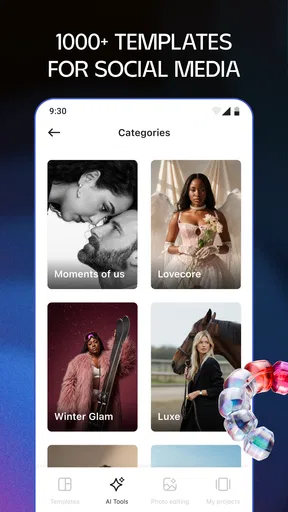
 Analysis by AppCompare
When I’m choosing a photo editor, I want to know whether it will actually help me finish a picture—or just give me another screen full of buttons to ignore. Lift: AI Photo Editor is a photography app from Lift App, and its appeal is the mix of quick edits and creative layouts. It has a 4.7 average from around 12,000 ratings and over a million installs, so it has clearly found an audience. I’d think of it less as a replacement for every photo tool and more as a convenient place to polish images and prepare visual posts.
What the free starting point tells you
The app is free to install, which makes it easy to try before deciding whether it fits your routine. In-app purchases range from $2.99 to $59.99 per item, so there is a meaningful difference between free access and spending on extras. I wouldn’t treat the highest listed price as the cost of using the app: it’s a range of individual purchases, and the right question is whether the particular options you want are worth paying for.
That distinction matters if you only edit a photo now and then. You can begin without committing money, then judge the experience with your own images. If you find yourself reaching for paid items often, consider the total value to you rather than buying just because an option looks appealing in the moment.
Where the editing time goes
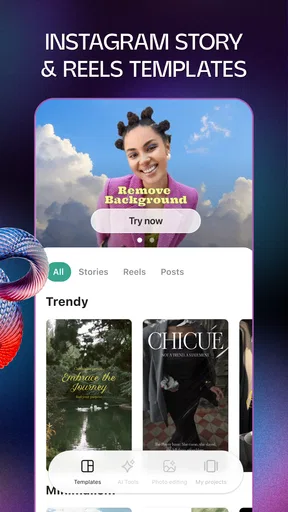
The practical value is in having several kinds of visual work together: photo edits, video edits and story templates. That can be useful when I’m making a post from a handful of pictures and a short clip, rather than moving between separate apps just to get a consistent look. Templates are especially handy when I know the mood I want but don’t want to build a layout from scratch.
A useful workflow is to choose the image first, make only the corrections it needs, and then try a template if the picture is meant for a story or a more designed post. That order helps me avoid letting a ready-made layout dictate the edit. For a family photo, for example, I might keep the treatment restrained; for a casual weekend recap, a more expressive design could be the point.
Good fit, with a few caveats
I’d recommend trying it if you regularly make social content, enjoy experimenting with templates, or want a single mobile workspace for quick visual projects. It is also approachable for someone who doesn’t want to learn a complicated desktop editor before improving a picture. The age rating is Everyone, and the current version is 2.4.0.b2, with iOS 11 listed as the minimum operating-system requirement.
Still, a template-led workflow is not ideal for every job. If your priority is precise control over a large batch of photos, a dedicated editor with a workflow built around sorting and repeatable adjustments may suit you better. Likewise, if you only want to crop or make a small exposure correction, a phone’s built-in editor may be quicker and involve less decision-making.
Worth Reading Before You Choose

Flipboard Shows What News Apps Must Do Beyond the Feed

Switching to Android Auto Means Rethinking Your Driving Routine

Google Calendar Makes a Crowded Week Easier to Manage

Ludo King Makes the Most of the Minutes Between Plans

Baby Panda World Brings Quick Play to Modern Phones, but Its Game Library Feels Busy

ESPN’s Live Game View Makes Following Close Games Easier
Getting Started with Lift
First things first, downloading Lift: AI Photo Editor is a breeze. It’s available on both Android and iOS, so no one gets left out. Once installed, you’re greeted with a sleek, user-friendly interface that’s as intuitive as it is inviting. Seriously, it’s like the app is saying, “Hey, let’s make some magic!”
Features That Spark Creativity
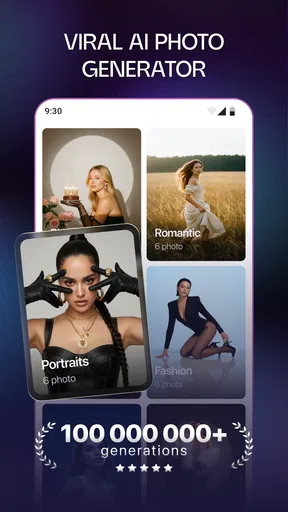
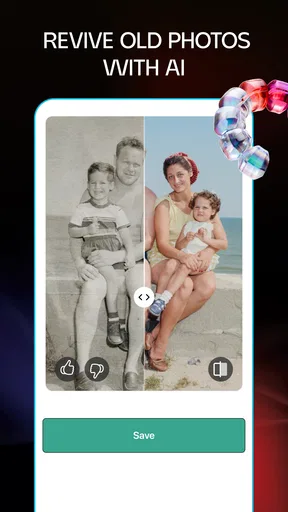
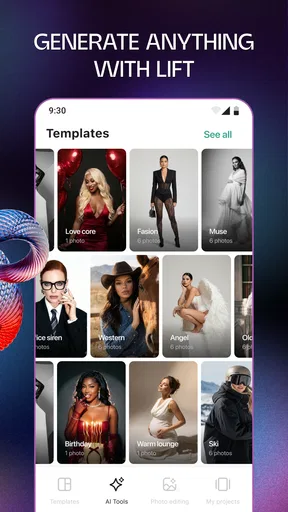
What sets Lift apart from other photo editors is its impressive range of features powered by AI. You’ve got your usual suspects like filters and adjustments, but the real magic happens with the AI tools.
Firstly, there’s the AI Auto Enhance feature. It’s like having a professional photographer in your pocket. With just one tap, your photos are automatically adjusted for brightness, contrast, and saturation. It’s perfect for those quick fixes when you don’t have time to tinker with settings.
Then, we have the Background Remover. Ever wanted to make your selfies pop by ditching the cluttered background? This tool does just that with impressive precision. It’s ideal for creating stunning portraits or professional-looking profile pics.
Editing Like a Pro
Now, let’s talk about the customization options. Lift really shines here, offering a plethora of filters that range from subtle to dramatic. Whether you’re into dreamy pastels or vibrant hues, there’s something for everyone. Plus, the app lets you stack filters, giving you endless possibilities to personalize your photos.
For those who love to dabble in manual editing, the app offers a comprehensive set of tools. You can tweak everything from exposure to sharpness, all with easy-to-use sliders. It’s like having a digital darkroom at your fingertips.
My tip is to use the automatic adjustment as a starting point, not a final verdict. A one-tap change can rescue a dim indoor snapshot, but it may push color or contrast further than I want. I’d check faces and bright areas before saving, then pull back any slider that makes the result feel unlike the original moment. That small review step is especially useful when editing several pictures from the same occasion.
Stacking filters can also be more effective when I keep a clear purpose in mind. I might use one for overall color and another for a subtle mood, but piling on effects simply because they are available can muddy skin tones and make a set of photos feel inconsistent. For a carousel or story sequence, I’d edit one representative image first, then use it as a visual reference for the others rather than assuming the same combination will suit every shot.
A real-life workflow, not just a finished picture
Imagine I’m at a friend’s birthday and take a few quick photos in mixed indoor light. Later, I want one portrait for a profile and a short story recap for friends. I can start with the portrait, try the quick enhancement, and inspect whether it has kept the face looking natural. If the background distracts from the subject, the background-removal tool offers another route; I’d check the edges around hair and shoulders before using the result, since a cutout can look less convincing when the outline is rough.
For the recap, I’d pick only the strongest images rather than trying to make every frame carry the same visual weight. A template can give the story a more finished structure, while a short video edit can make sense when a moving moment says more than a still. This is where the app’s range is useful: it can support a small project from selection through presentation. It doesn’t remove the need to choose good source material, though, and a busy layout won’t make a blurry or poorly framed photo clearer.
Before sharing, I’d look at the image at the size people are likely to see it and check that any text or important detail remains easy to read. A design that looks balanced while editing can feel crowded on a phone screen. I’d also keep an unedited original when I care about preserving the photo, so I can return to it later instead of treating the first creative version as permanent.
Templates, speed and the usual alternatives
Compared with a basic built-in phone editor, Lift is more appealing when I want a designed result rather than a simple crop, rotation or light correction. Its templates and broader mix of photo, video and story work make it more useful for putting together a post with a particular look. A phone’s native editor still wins for the smallest fixes: it is already close at hand, and opening a separate app may be unnecessary when I only need to straighten a horizon.
Against a more manual photography editor, the trade-off goes the other way. Lift’s quick tools and ready-made creative direction can save decision time, while someone who wants careful, repeatable control over a large library may prefer software focused on detailed photo management and fine adjustments. I see Lift as a practical middle ground for casual creators, not a promise that every edit will be faster or more exact than a specialist workflow.
Templates are most valuable when they help me get past a blank canvas. They are less useful when I need a very specific composition or want every post to follow a strict visual system. In that case, I’d use one as a reference, then decide whether its layout actually serves the subject. A template should frame the memory, not compete with it.
The Social Connection
In today’s digital age, sharing is caring, and Lift gets that. The app integrates seamlessly with social media platforms, allowing you to share your edited masterpieces directly to Instagram, Facebook, or wherever your audience hangs out. You can even add hashtags and captions within the app to streamline your posting process.
That convenience is most useful when I’m already finishing a post and want to avoid an extra handoff. I’d still give captions and hashtags a final read before publishing: writing them while focused on an image can make it easy to miss a typo or use wording that doesn’t fit the audience. For a personal post, the quick route is handy; for a business announcement or carefully scheduled campaign, I’d take time to check the whole post in its destination context.
People often ask whether this is only for still photos. It isn’t limited to that kind of project: the app also covers video and story editing, which makes it worth considering if your posts mix formats. That doesn’t mean every creator needs one app for everything. If your work depends on a specialized video process, a dedicated video editor may give you a better fit, while Lift is more compelling when you value having these creative tasks together.
Who is likely to get the most from it?
I think the best match is someone who takes photos on a phone and wants a fast route from camera roll to a shareable result, without spending every edit adjusting tiny details. It can also suit a small shop owner or hobby creator who needs occasional story graphics and short visual posts, provided the available templates match the tone they want. For a one-off event, it can be a convenient way to give a few photos a coordinated feel instead of designing each from scratch.
On the other hand, I’d skip it if I rarely edit pictures, dislike template-driven design, or need highly controlled batch processing as a regular part of my work. I’d also be cautious about choosing any editor solely for a specific tool before trying it on the kind of image I actually shoot. Portrait cutouts, low-light photos and busy backgrounds can each expose different weaknesses; a quick test with a typical image is more informative than an ideal sample.
If you’re wondering whether you have to pay to find out if it suits you, the free installation gives you a way to begin, while individual in-app purchases are separately priced from $2.99 to $59.99. I’d explore the free experience first and only consider a purchase when I can name the feature or resource I’m paying for and expect to use it. With the app rated Everyone, it’s broadly accessible, but that doesn’t make every design choice right for every age or occasion; I’d still review what a child is creating before it goes online.
Why It’s Worth Your Time
What I love most about Lift is how it transforms the editing process into a fun, creative endeavor rather than a chore. The AI tools are not just gimmicks; they genuinely enhance your photos, making them stand out in your feed.
Plus, the app is constantly updated with new features, ensuring that you’re always at the cutting edge of mobile photography. Whether you’re a seasoned photographer or just someone who loves snapping pics, Lift offers something for everyone.
So, if you’re ready to elevate your photo game, give Lift: AI Photo Editor a whirl. Trust me, your photo gallery will thank you!
My buy-or-skip verdict
My recommendation is to try it for a real task rather than browsing effects without a goal. Pick a portrait you would actually share, make a restrained edit, then see whether a template or a video/story workflow adds something you couldn’t get quickly elsewhere. If it saves you effort more than once, the free starting point may be enough for occasional use, and a paid item can be judged on its own usefulness instead of on the app’s overall promise.
Lift was released on August 4, 2023, and its current version is 2.4.0.b2. For me, it makes most sense as a flexible creative companion for people who like shaping and sharing phone-made content. I’d choose a simpler built-in editor for quick corrections and a specialist tool for demanding, repeatable editing; I’d choose Lift when I want a more expressive result without turning a casual post into a technical project.
Pros
- User-friendly interface enhances editing experience.
- Wide range of AI tools for creative edits.
- High-quality output with minimal effort.
- Regular updates improve app performance.
- Cross-platform support for Android and iOS.
Cons
- Some features require in-app purchases.
- Can be resource-intensive on older devices.
- Occasional lag with large image files.
- Limited free version capabilities.
- Requires stable internet for best results.
FAQs for Lift: AI Photo Editor
What features does Lift: AI Photo Editor offer?
Lift: AI Photo Editor provides a range of features including AI-driven photo enhancements, background removal, and advanced filters. Users can also access professional-level editing tools such as cropping, color correction, and retouching. The app is designed to be user-friendly, making it accessible for both beginners and experienced editors.
Is Lift: AI Photo Editor suitable for beginners?
Yes, Lift: AI Photo Editor is designed with an intuitive interface that caters to beginners. The AI-driven features simplify complex editing tasks, allowing users to achieve professional results with minimal effort. There are also tutorials and guides within the app to help new users navigate and utilize the various tools effectively.
Does Lift: AI Photo Editor require an internet connection?
Certain features of Lift: AI Photo Editor, especially those involving AI processing, may require an internet connection. However, many basic editing tools can be used offline. It's advisable to have a stable internet connection to fully utilize all the app's capabilities, including updates and cloud-based features.
Are there any in-app purchases or subscriptions in Lift: AI Photo Editor?
Lift: AI Photo Editor offers both free and premium versions. While many features are available for free, there are additional tools and filters accessible through in-app purchases or a subscription. The premium version provides an ad-free experience and unlocks exclusive content, enhancing the overall editing experience.
How does Lift: AI Photo Editor handle user privacy and data?
Lift: AI Photo Editor is committed to user privacy. The app requires minimal permissions and ensures that user data is not shared with third parties without consent. Users can review the app’s privacy policy to understand how their data is managed and take necessary steps to protect their information.


